1Getting started
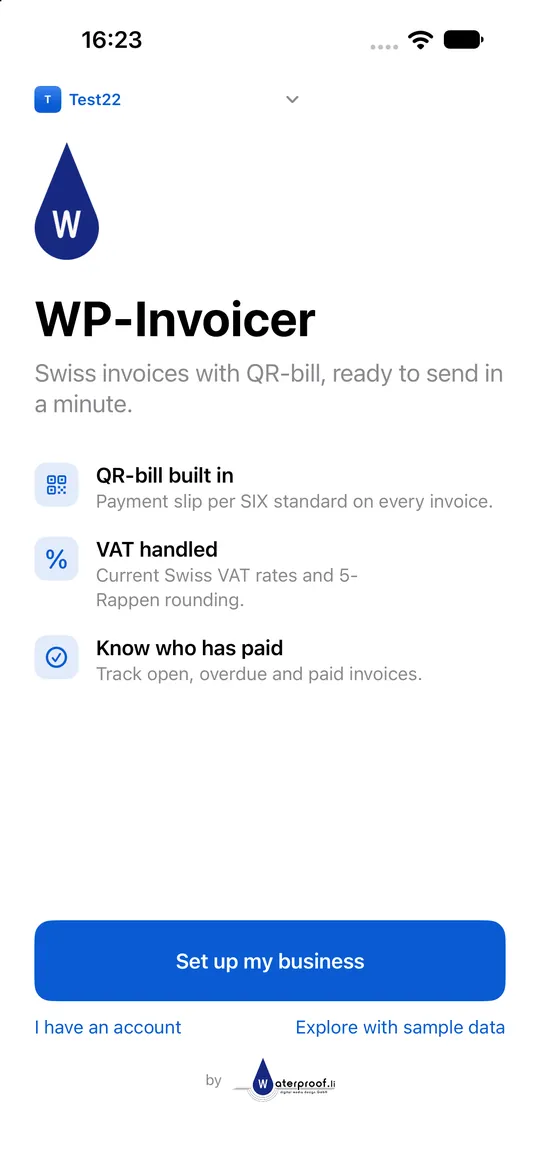
WP-Invoicer runs on iPhone and Android. Without an account, all data stays on your device.
- Install WP-Invoicer from the App Store or Google Play.
- Tap Set up my business – or Explore with sample data to look around first. If you already have an account, tap I have an account.
- Enter your business name and address. You can change everything later in Settings.
2Business details and payment account
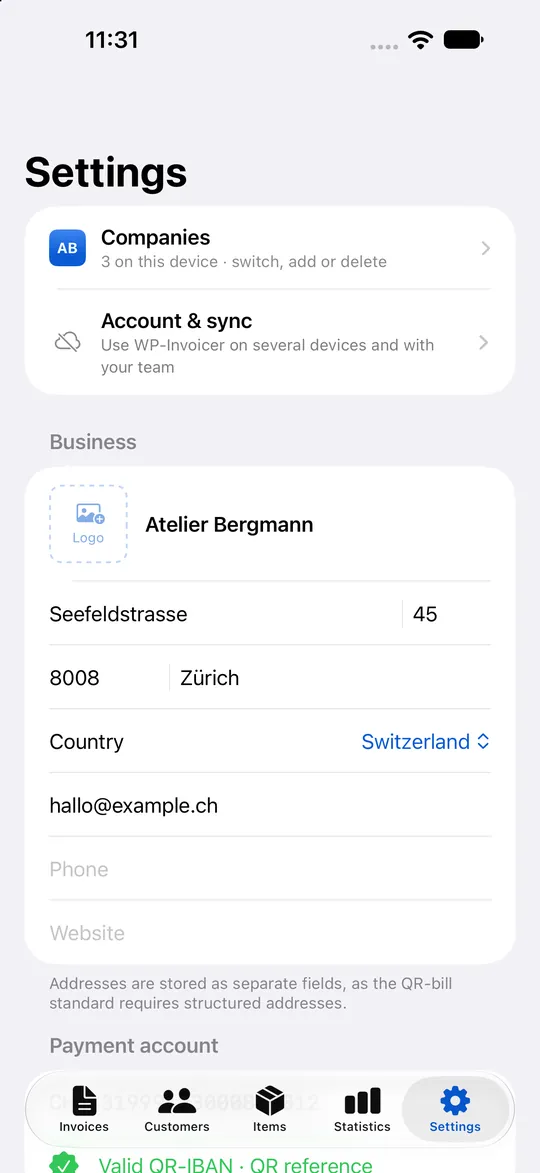
These details appear on every invoice and in the QR-bill.
- Open Settings → Your business: business name, address, e-mail, phone, website. Tap Choose logo to add your logo.
- Under Payment account, enter your IBAN or QR-IBAN. With a QR-IBAN, invoices get a 27-digit QR reference so your bank can match payments automatically; with a normal IBAN they get a creditor reference (RF…).
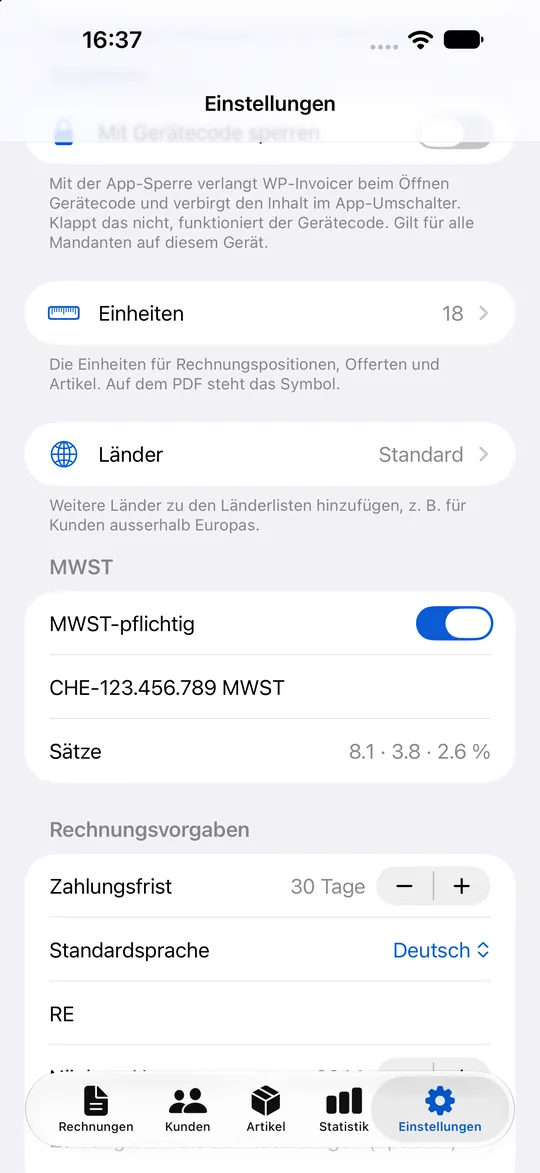
- Under VAT, switch on VAT registered and enter your UID / VAT number – or switch it off if you aren’t registered.
- Under Invoice defaults, choose the payment terms, the default language and the Number prefix (e.g. RE → RE-2026-0001).
3Customers and items
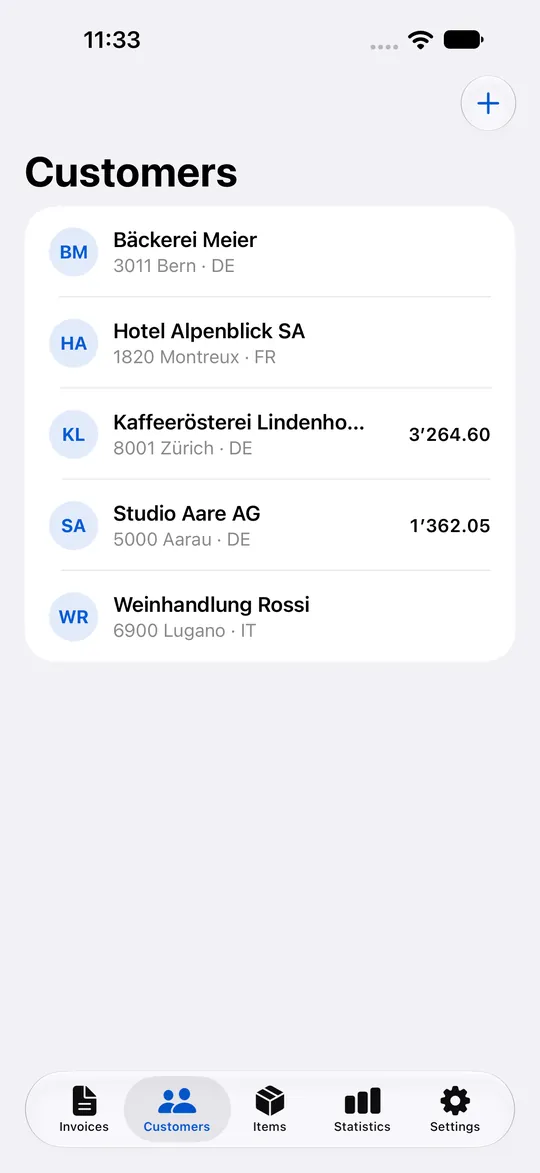
Save the people and companies you invoice, and the services and products you sell often.
- Go to Customers and tap +. Enter Name or company and the address – postcode, town and country are required for the QR-bill.
- Choose the Invoice language per customer (German, French, Italian or English) and an optional discount in %.
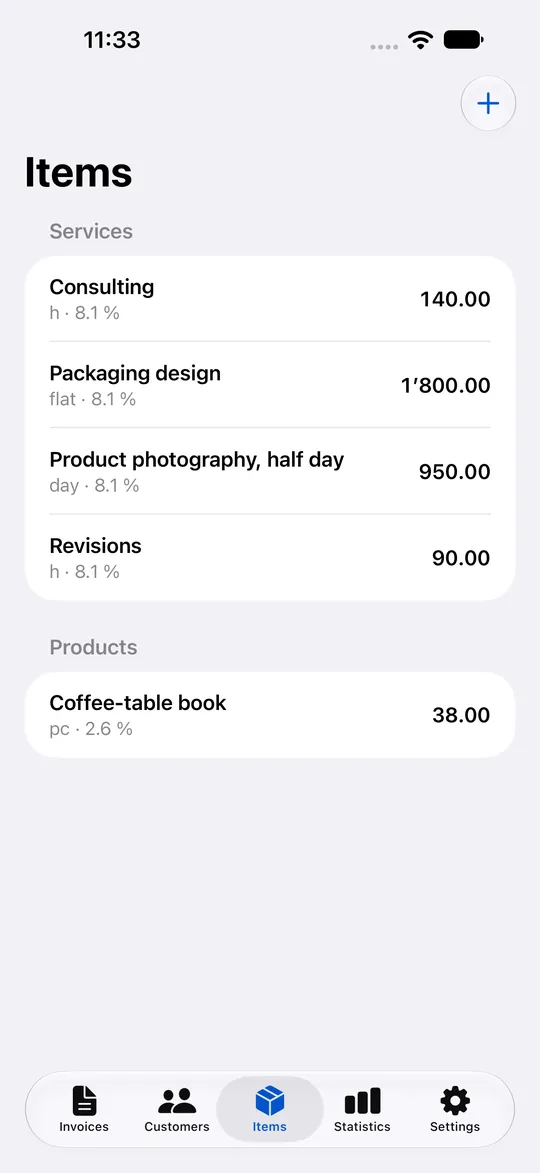
- Go to Items and tap +. Enter the name, unit, Unit price (CHF) and VAT rate. Items are sorted into services and products.
4Creating and sending an invoice
An invoice with a Swiss QR-bill in under a minute.
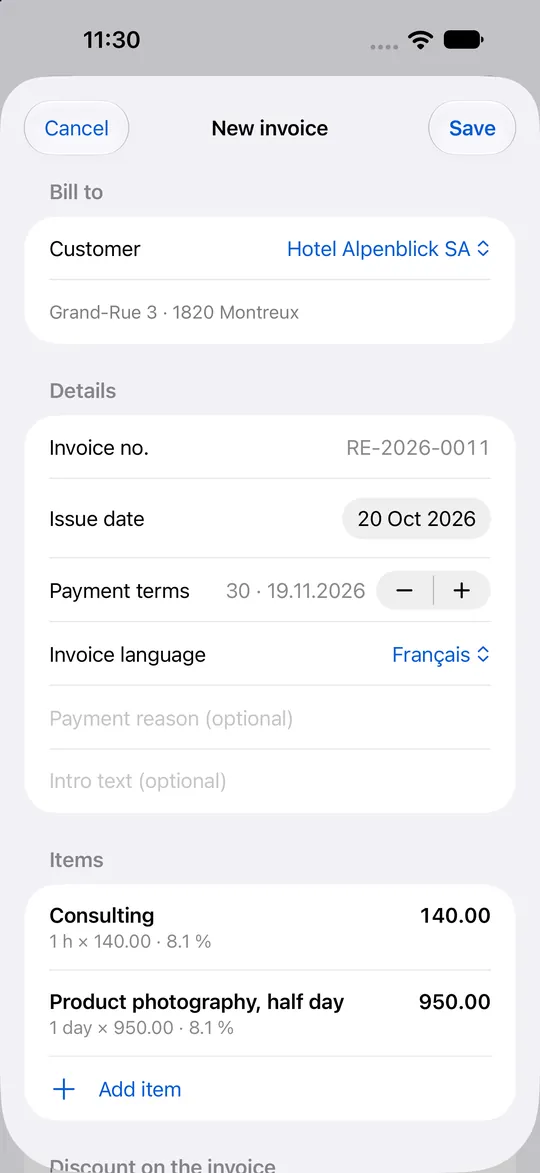
- Go to Invoices and tap + (New invoice).
- Choose the Customer. Date, payment terms and language are filled in automatically and can be changed.
- Tap Add item to pick an item from your list or add an Empty line. Quantity, price, VAT and discount can be changed per line.
- Tap Save. The invoice gets the next number automatically.
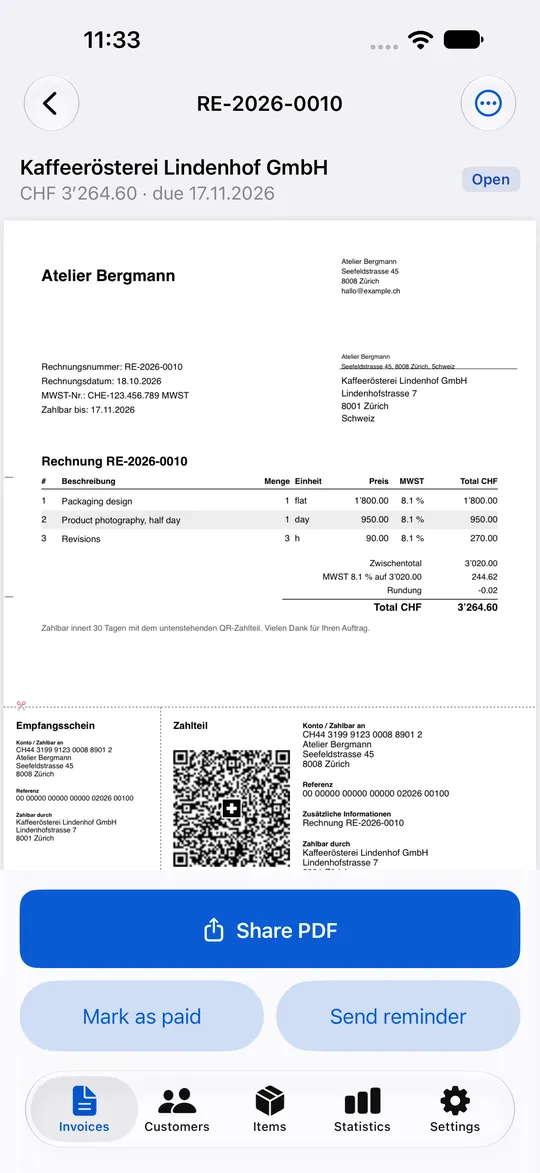
- Tap Share PDF and send it by e-mail or messenger. The PDF contains the QR payment part your customer scans with the banking app.
5Payments and reminders
Always know what is open, paid or overdue.
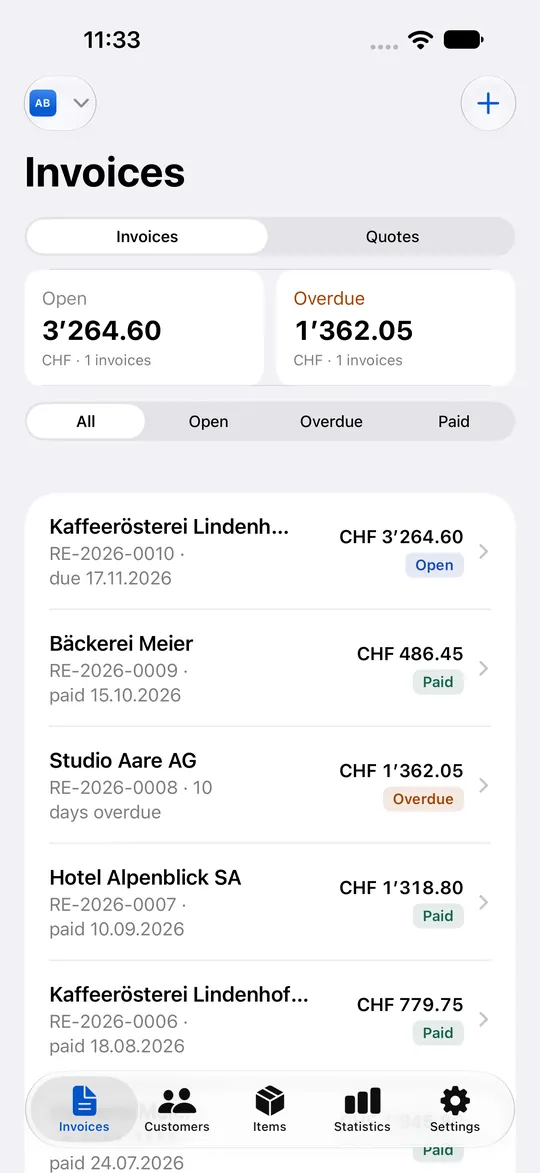
- The Invoices list shows the totals for open and overdue invoices; filter with Open, Overdue and Paid.
- When a payment arrives, open the invoice and tap Mark as paid. With bexio, Abacus or a bank connection this happens automatically (see below).
- For overdue invoices, tap Send reminder: WP-Invoicer creates a payment reminder as PDF.
6Quotes
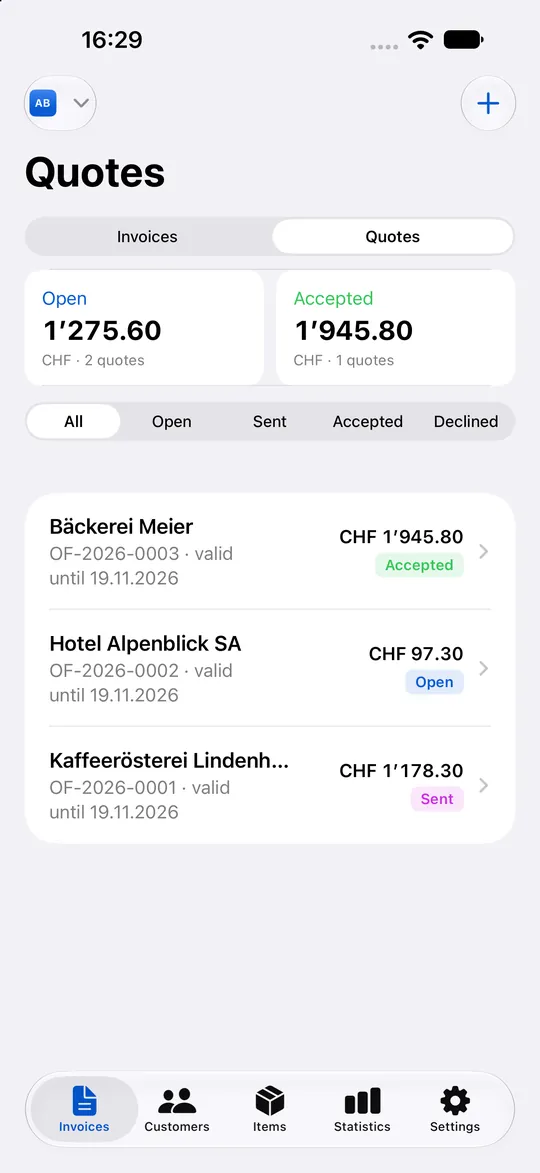
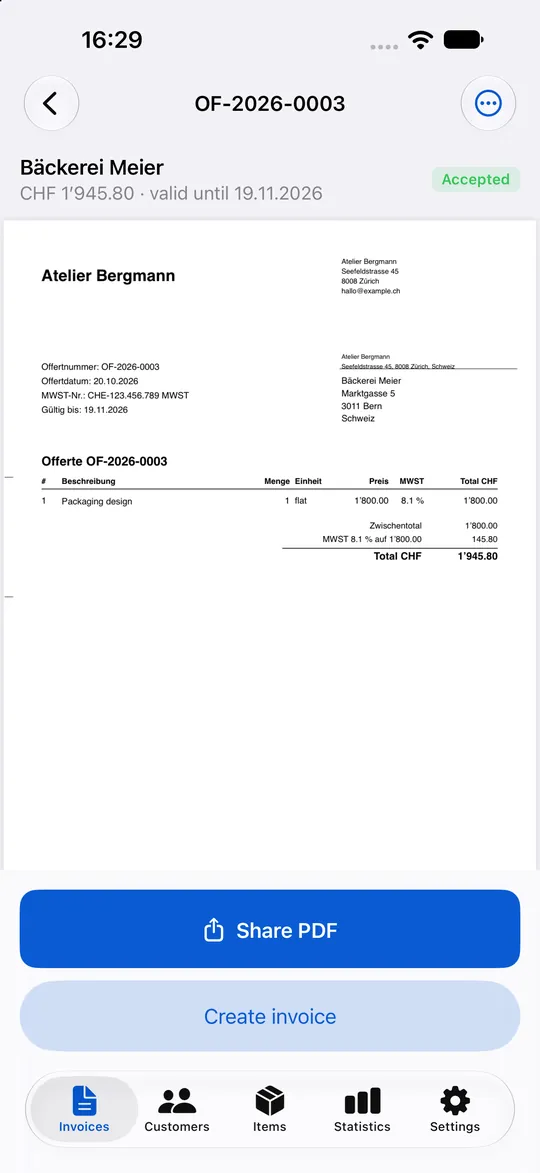
Write a quote first and turn it into an invoice with one tap.
- In Invoices, switch to Quotes and tap + (New quote).
- Fill it in like an invoice. Your standard terms (Settings → Quotes) are added automatically.
- Tap Share PDF to send it. When the customer agrees, tap Mark as accepted and then Create invoice.
7Statistics and reports
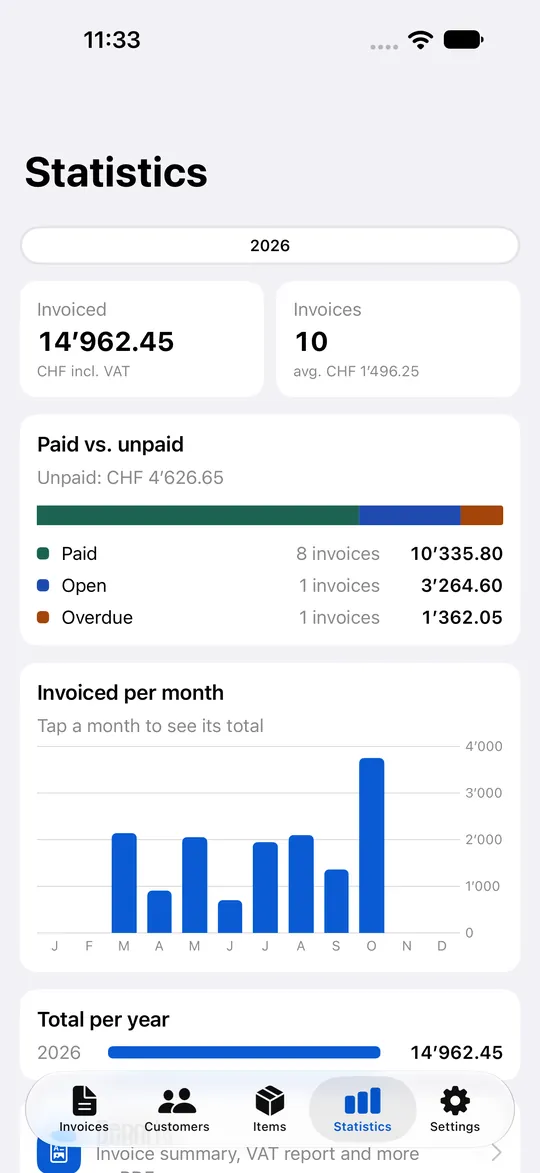
Revenue and open amounts at a glance – and the figures for your bookkeeping.
- Statistics shows what you invoiced, paid versus unpaid, and the totals per month and year. Tap a month to see its total.
- Under Reports you get an invoice summary and a VAT report for a month, quarter or year – as PDF in the app, and to print or download as CSV in the web app.
8Account and sync on several devices
With an account, your data is synced between iPhone, Android and the web app – and you can work in a team.
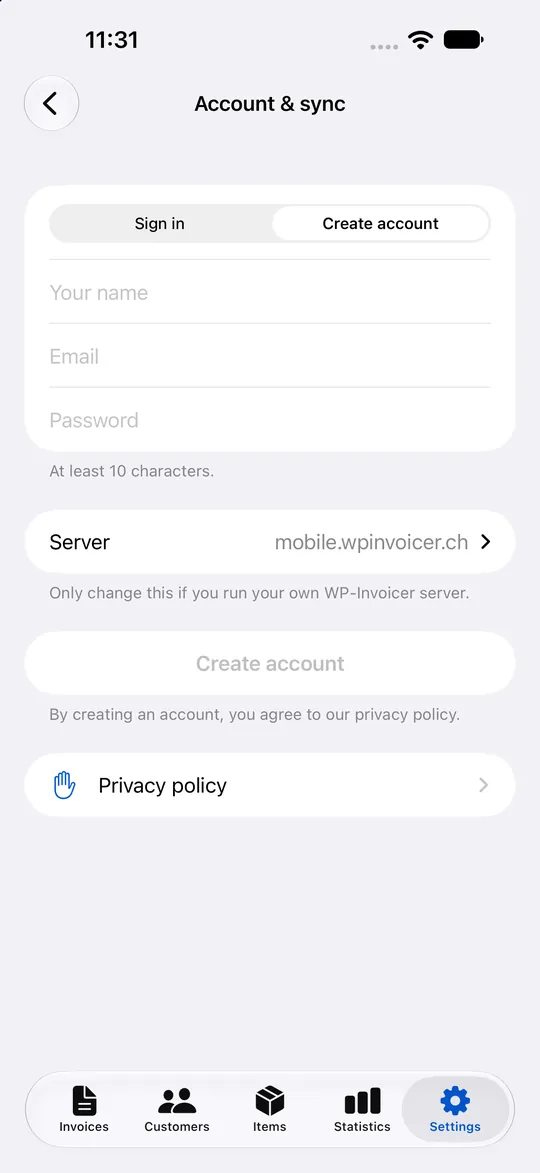
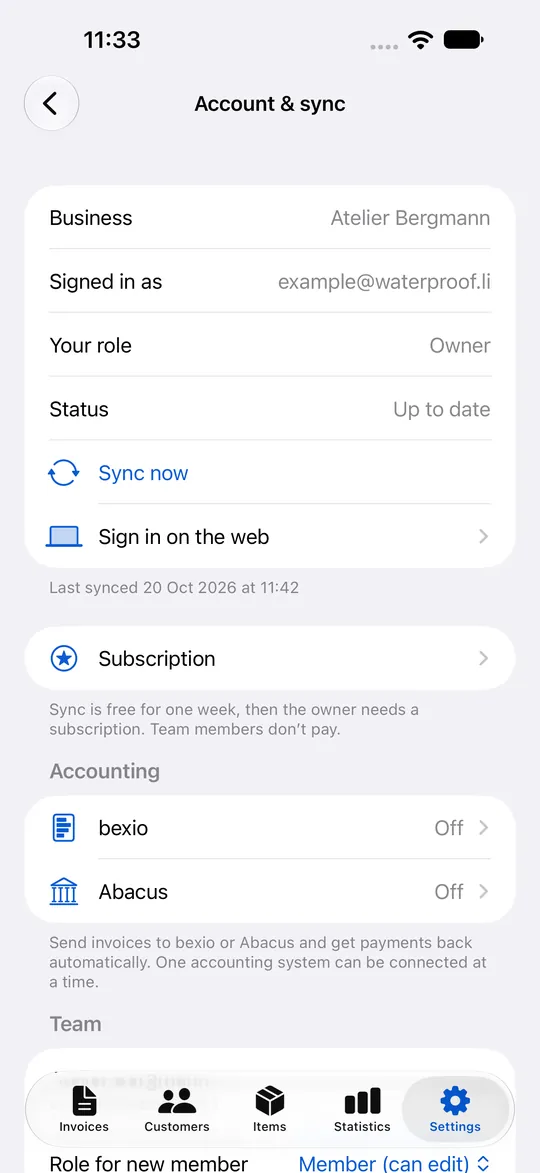
- Open Settings → Account & sync and tap Create account. Enter your name, e-mail and a password (at least 10 characters).
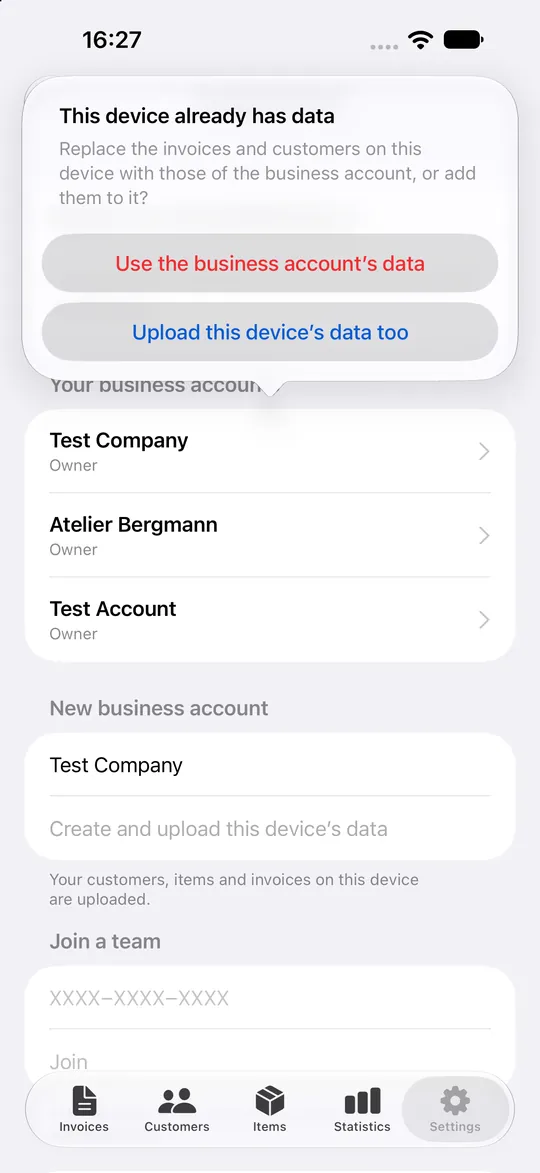
- Under New business account, enter your business name and tap Create and upload this device’s data. Your customers, items and invoices are uploaded.
- The status shows Up to date. From now on every change is synced automatically.
- On another device: install WP-Invoicer, open Account & sync, tap Sign in and choose your business account under Your business accounts.
9Working in a team
Invite colleagues or your bookkeeper to the business account.
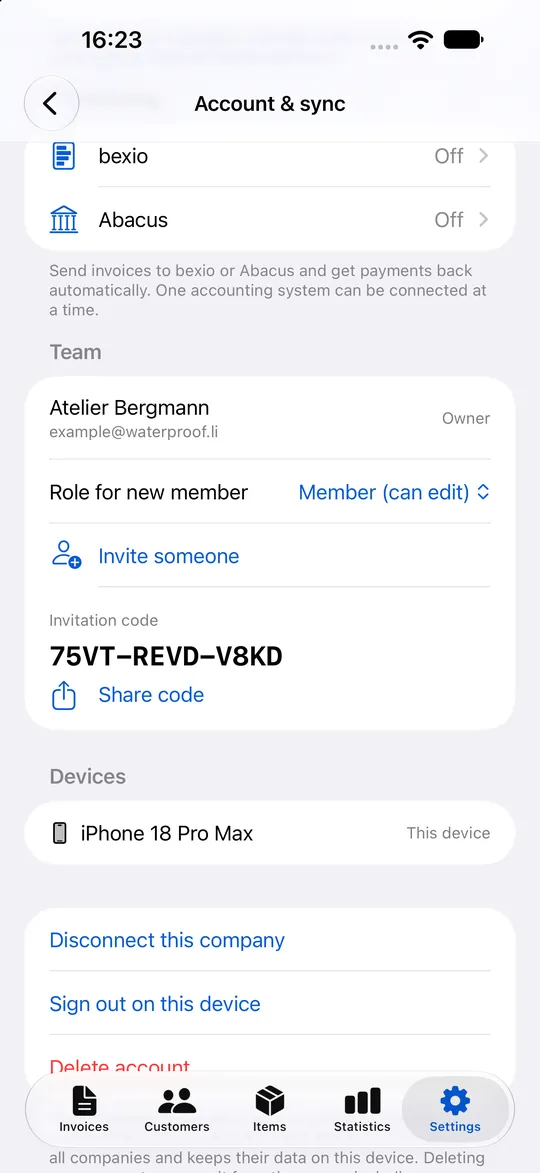
- In Account & sync → Team, choose the Role for new member: Admin, Member (can edit) or Read-only (e.g. bookkeeper).
- Tap Invite someone and then Share code to send the invitation code.
- Your colleague installs WP-Invoicer, creates an account in Account & sync and enters the code under Join a team → Join.
- Members are listed under Team; there you can also remove them.
10Web app
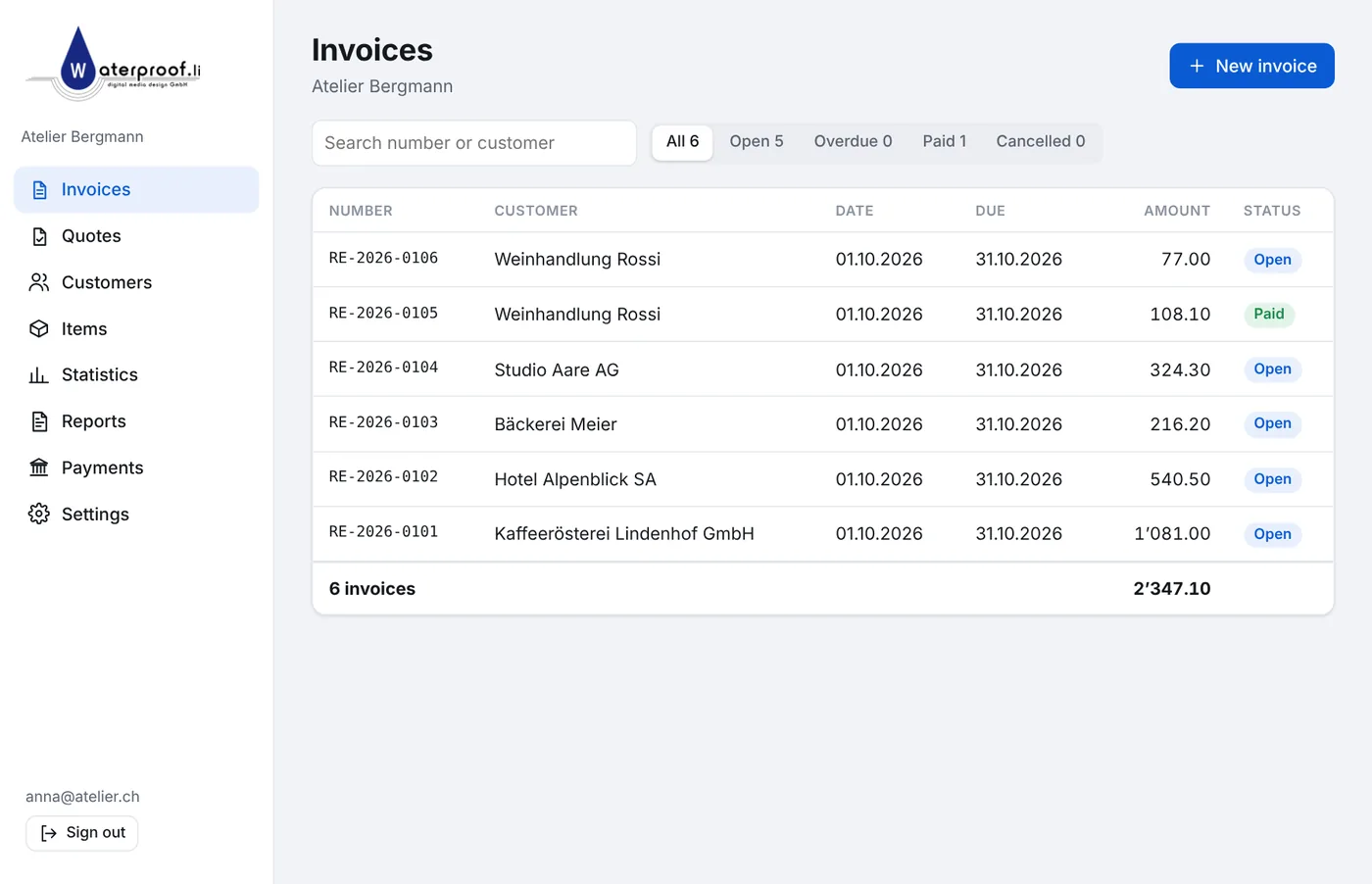
Write invoices, check payments and print reports on your computer at mobile.wpinvoicer.ch/web.
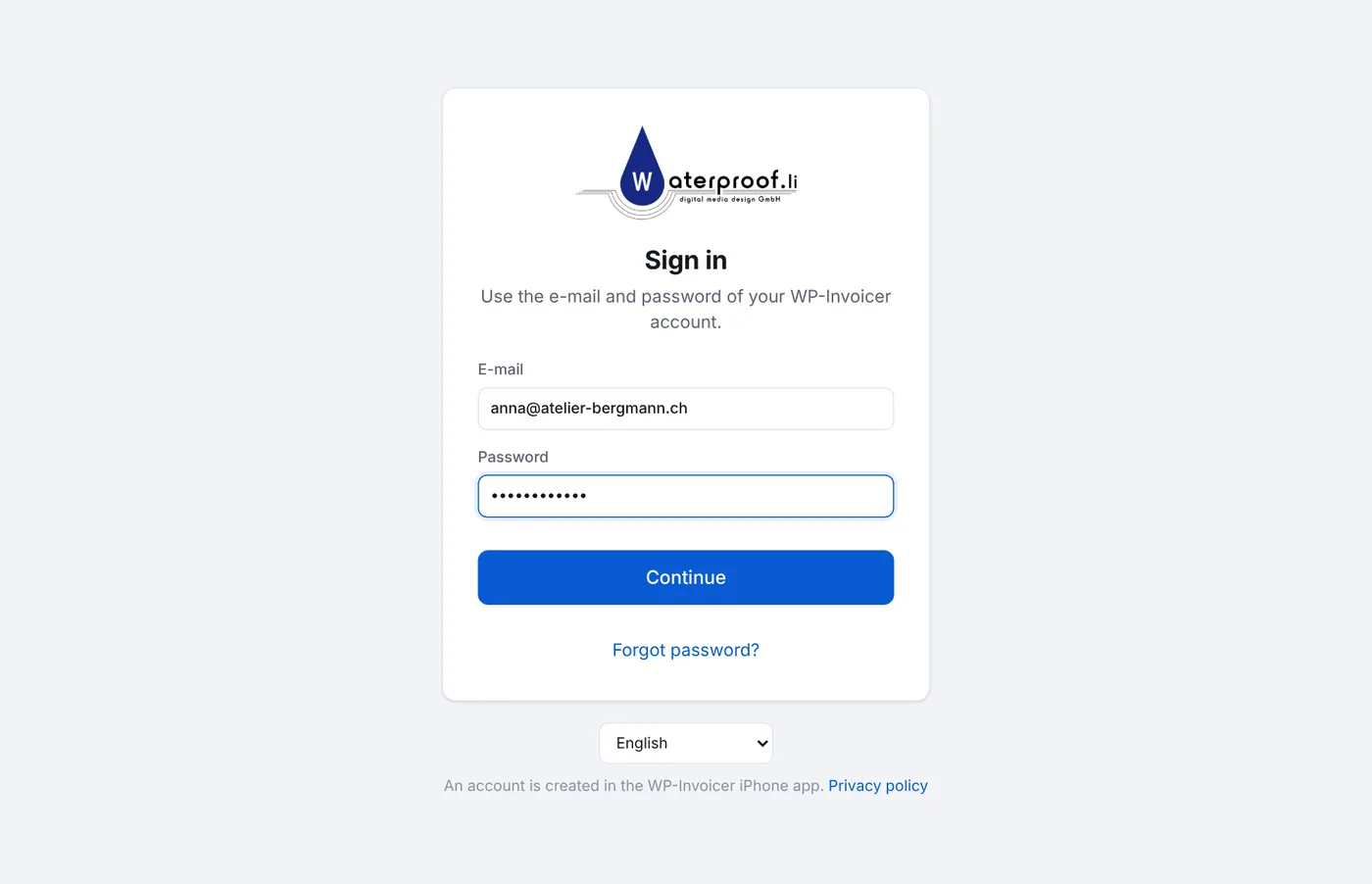
- Open mobile.wpinvoicer.ch/web and sign in with the e-mail and password of your account.
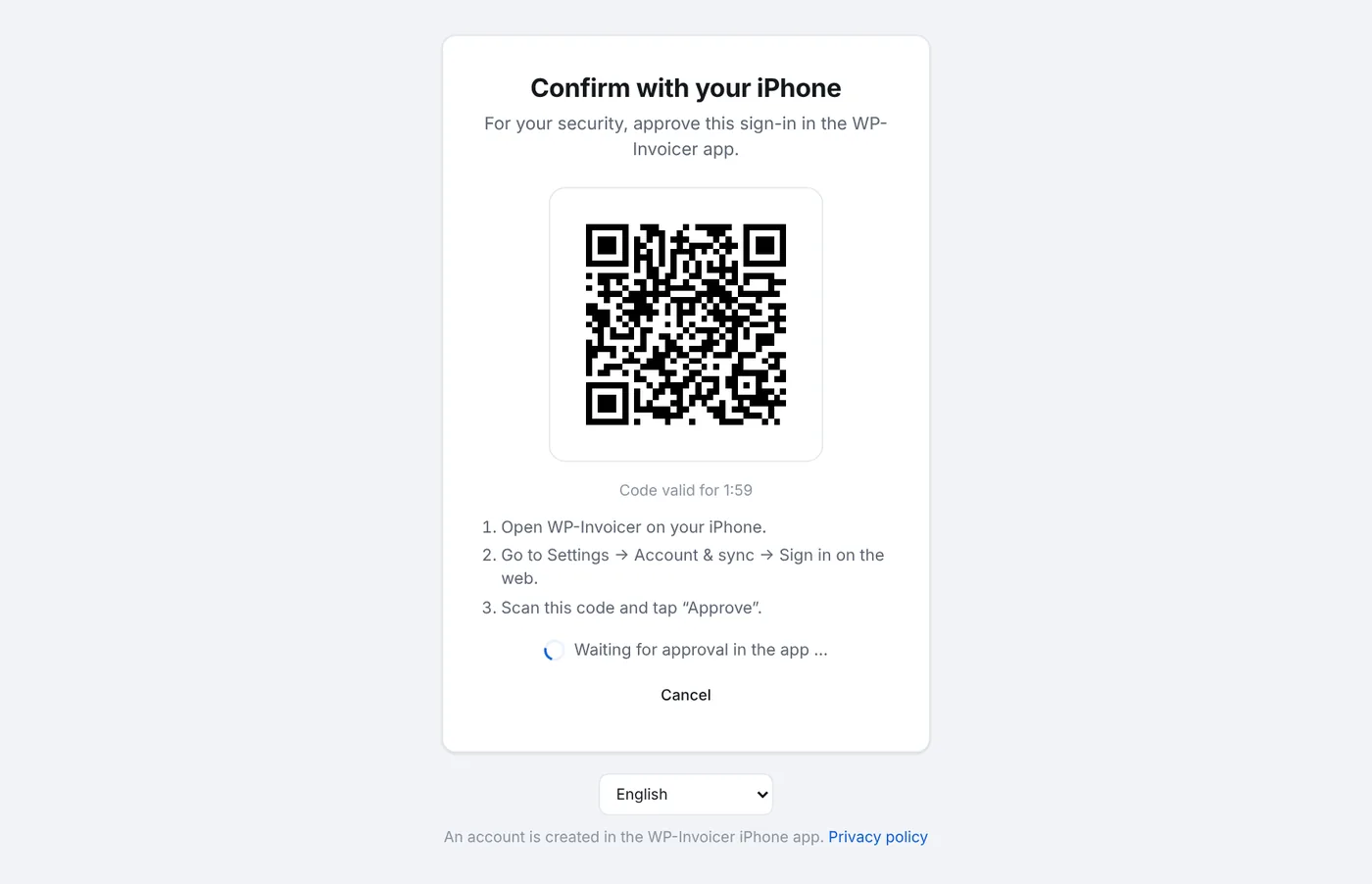
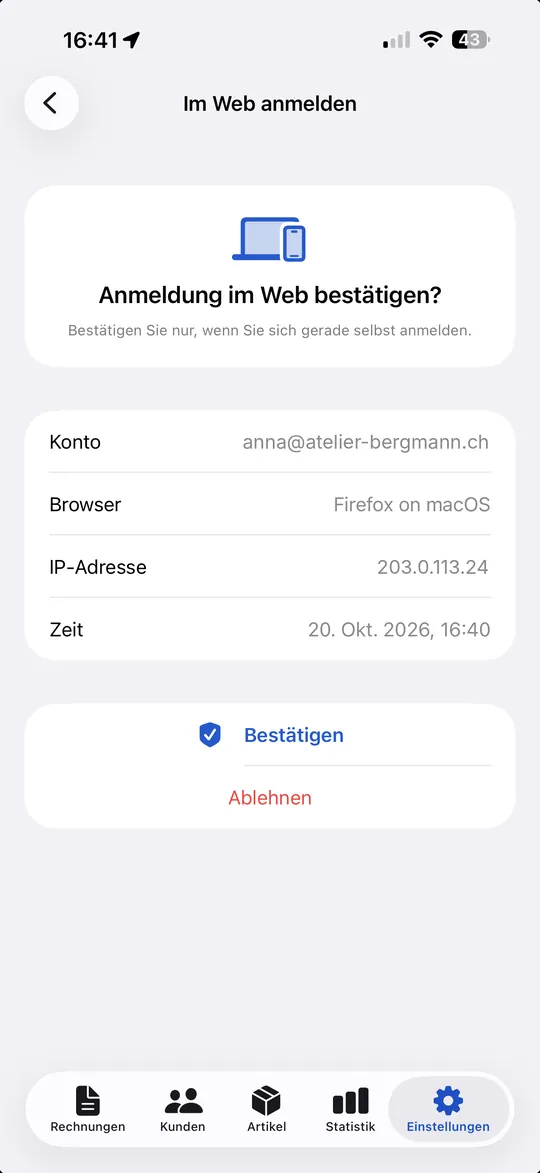
- For your security, a QR code appears. On your phone, open Settings → Account & sync → Sign in on the web.
- Scan the code and tap Approve. The web app opens with your business account.
11Subscription
Working on one device without an account is free. Sync, team and web app need a subscription after the 7-day trial.
- The free trial starts with the first sync of your business account.
- In Account & sync → Subscription, choose Monthly (CHF 1.–) or Yearly (CHF 10.–) and tap Subscribe. Payment is made through the App Store or Google Play.
- One subscription covers all business accounts you own – on iPhone, Android and in the web app. Team members sync for free.
- After a new installation, tap Restore purchases. Cancel in your Apple ID or Google Play settings.
12Connecting bexio
Send invoices to bexio – paid invoices are marked as paid in WP-Invoicer automatically.
- Requirement: a synced business account (see “Account and sync”). The connection is set up by an owner or admin.
- Open Account & sync → Accounting → bexio and tap Connect with bexio. Sign in at bexio and allow access.
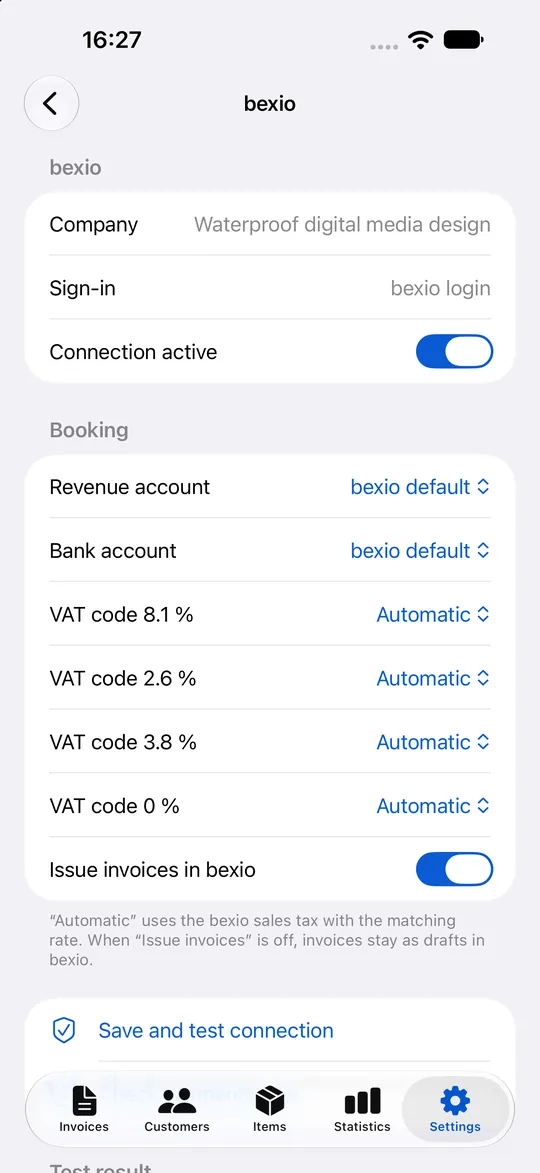
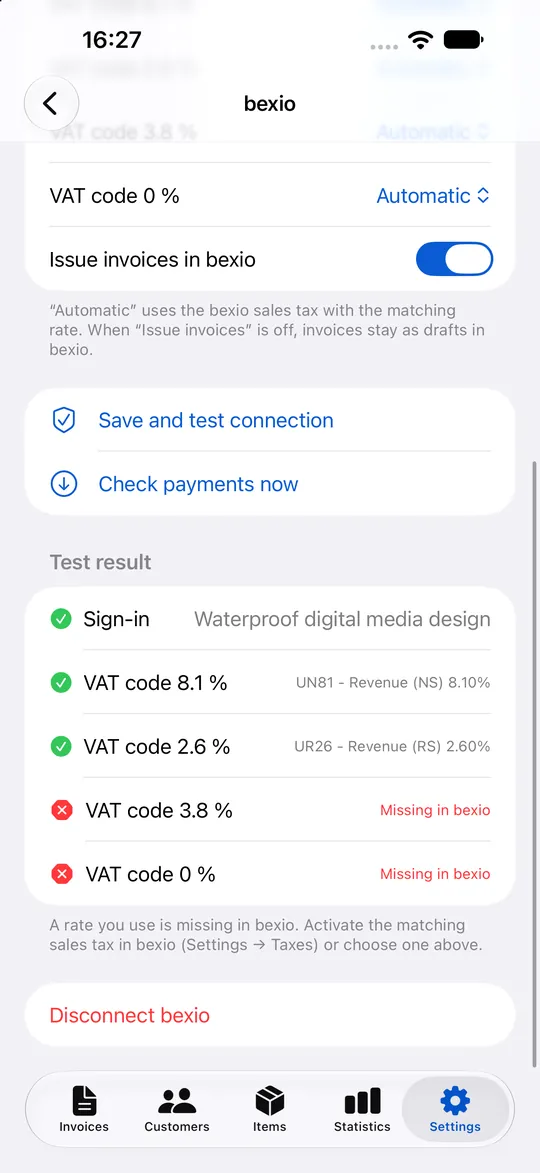
- Back in the app, choose the Revenue account, the Bank account and the VAT codes (Automatic uses the bexio sales tax with the matching rate). Leave Issue invoices in bexio on if invoices should be issued right away.
- Tap Save and test connection. The test shows whether all VAT rates you use exist in bexio.
- To send an invoice, open it and tap Send to bexio. The customer is created as a bexio contact if needed.
- Every 30 minutes, WP-Invoicer checks which invoices bexio reports as paid and marks them as paid. Tap Check payments now to check immediately.
13Connecting Abacus
Send invoices as debtor documents to Abacus and get payments back.
- In Abacus, create an API service user (program Q910) with access to addresses, debtors and debtor documents. Note the client ID and client secret.
- Open Account & sync → Accounting → Abacus. Enter the Abacus server, the Mandant, the Client ID and the Client secret.
- Enter the Revenue account and the VAT codes from your Abacus chart of accounts.
- Tap Save and test connection. Then send invoices with Send to Abacus on the invoice; payments are checked every 30 minutes.
14Incoming payments without accounting software
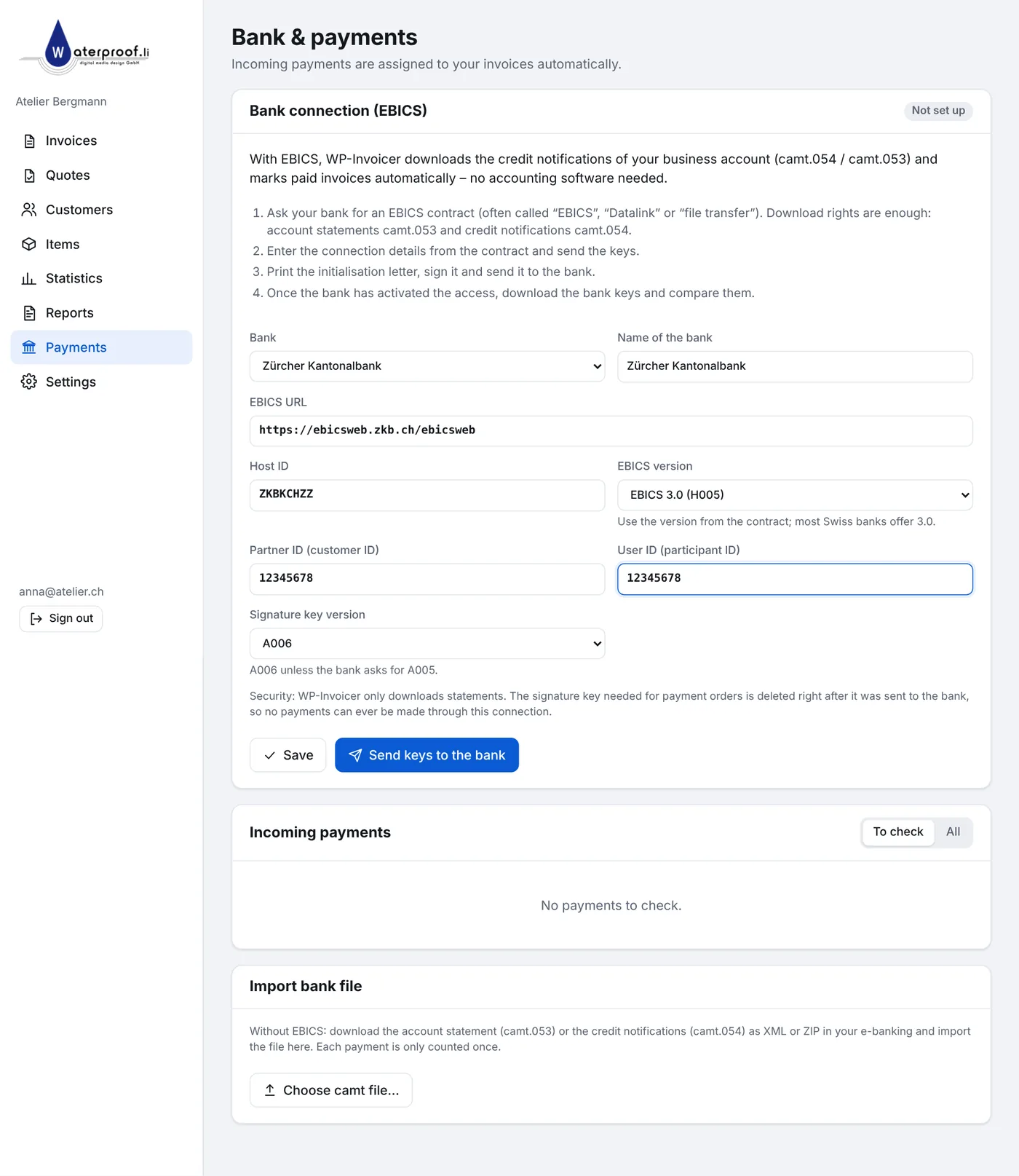
Without bexio or Abacus, WP-Invoicer can read your bank’s credit notifications and mark paid invoices automatically – in the web app under “Payments”.
- Ask your bank for an EBICS contract (also called “Datalink” or “file transfer”). Download rights for account statements (camt.053) and credit notifications (camt.054) are enough.
- In the web app, open Payments. Choose your bank (or enter the details), enter the partner ID and user ID from the contract and click Send keys to the bank.
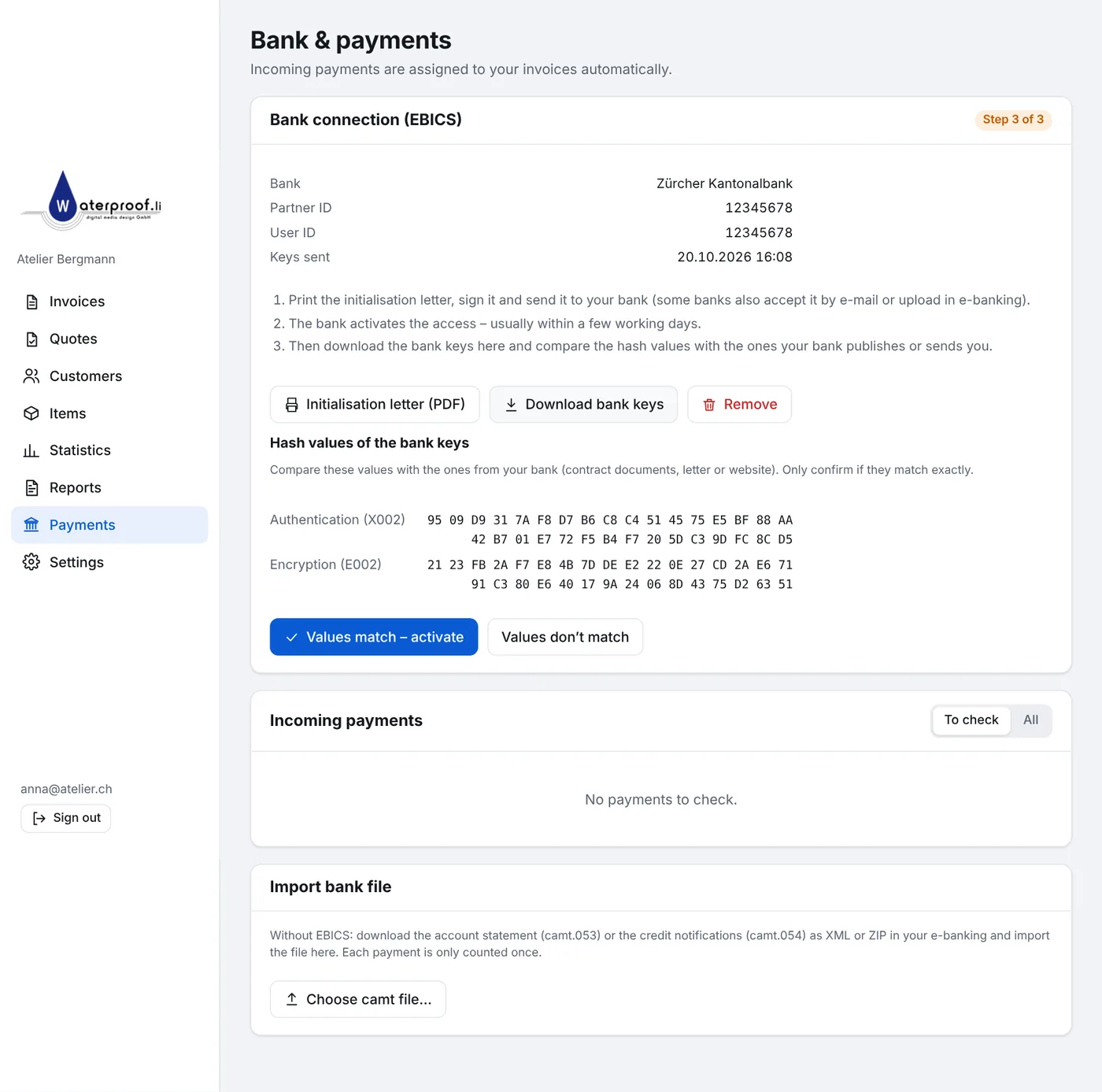
- Download the Initialisation letter (PDF), sign it and send it to your bank.
- Once the bank has activated the access, click Download bank keys, compare the hash values with those from your bank and click Values match – activate.
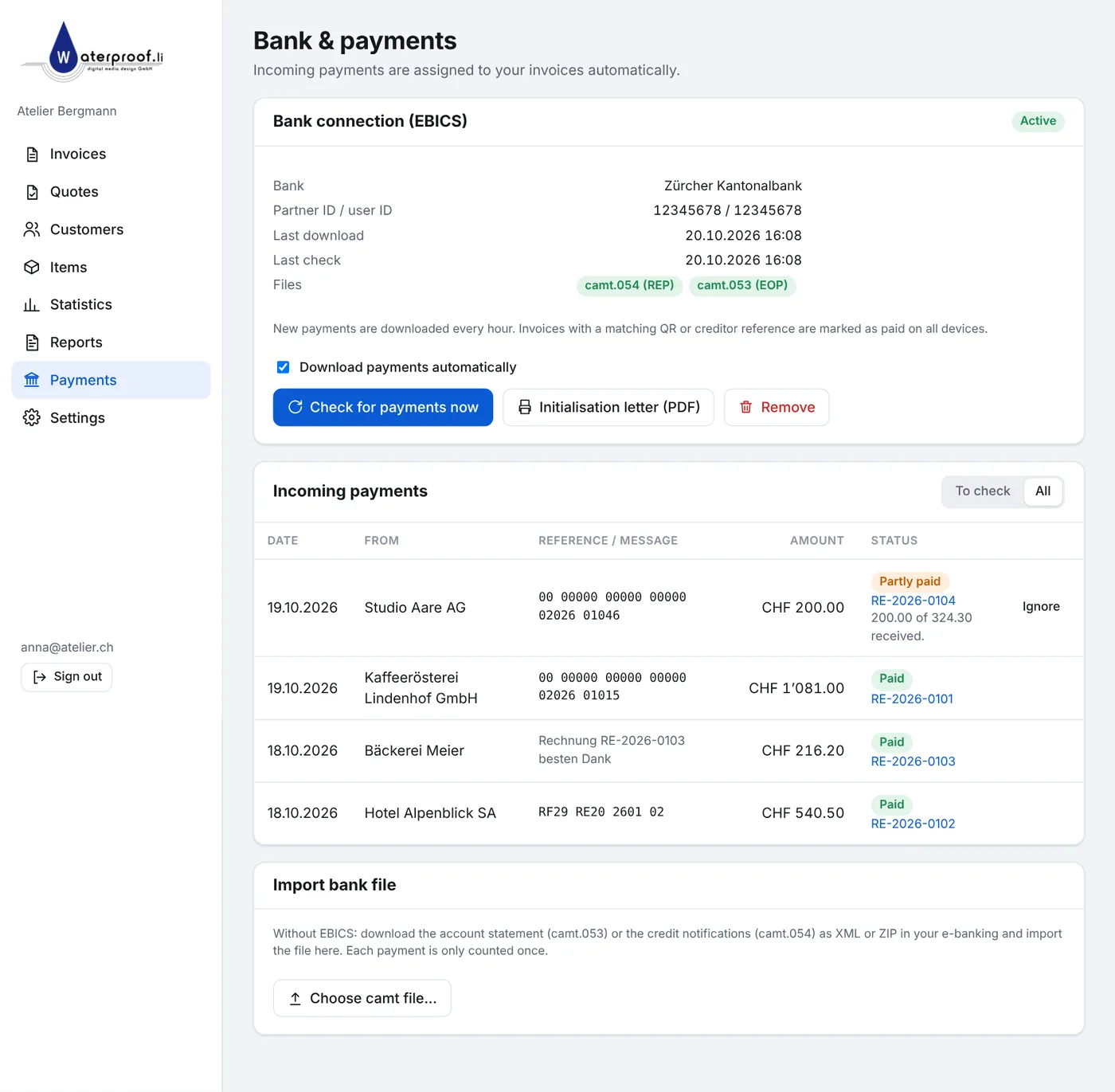
- From now on, payments are downloaded every hour. Payments with a QR or creditor reference are matched automatically; others can be assigned by hand.
More questions?
Write to us using the support form – we’re happy to help.